Your 2027 Astro Guide & Calendar purchase includes a digital calendar of the year's astrological events. You'll find the calendar links in your receipt and order confirmation email. Follow the steps for the calendar app you use.
Before you start: copy the calendar link (Google and Outlook)
- Open your receipt or order confirmation email.
- Under 2027 Astro Guide & Calendar, right-click TimePassages 2027 Astro Calendar (Google or Outlook).
- Select Copy Link Address (it may say Copy Link in some browsers).
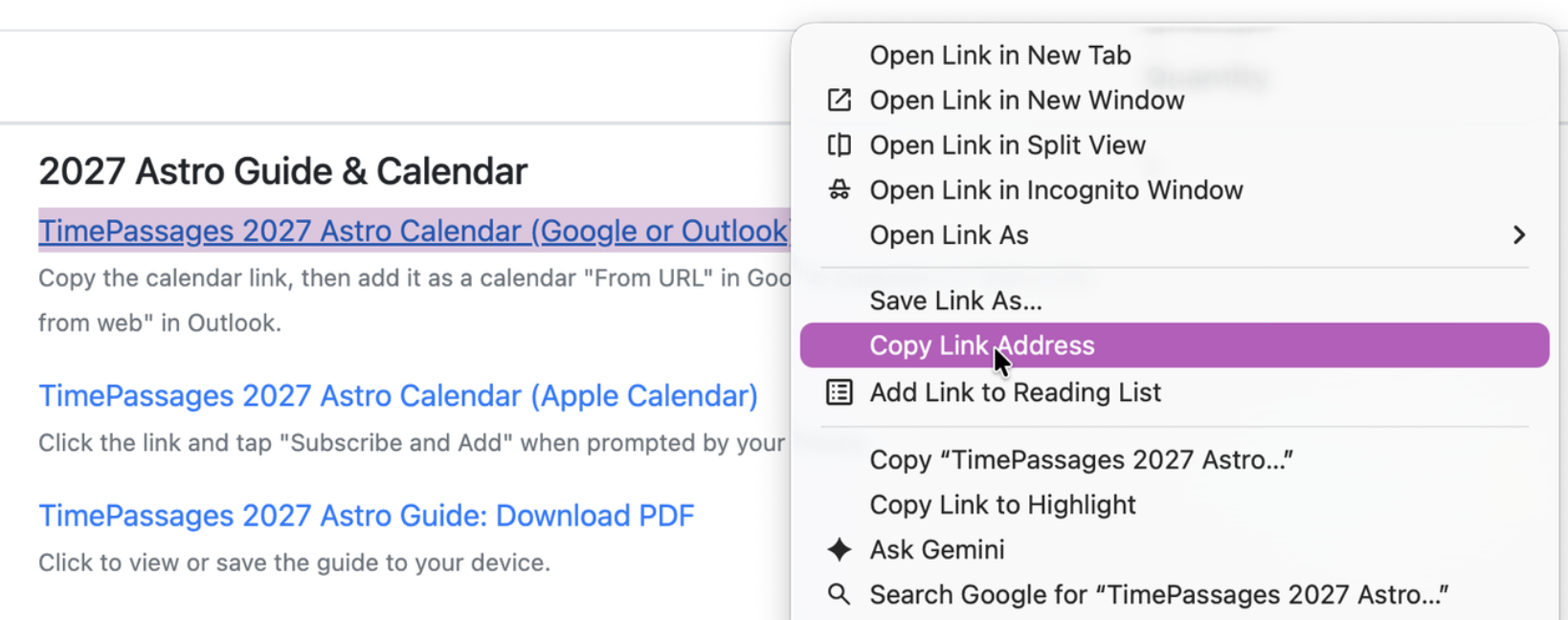
Copy the link instead of clicking it. Clicking it downloads a file but doesn't set up the calendar.
Google Calendar
You need to use Google Calendar in a web browser on a computer for these steps. The Google Calendar mobile app can't add calendars from a link.
- Open calendar.google.com.
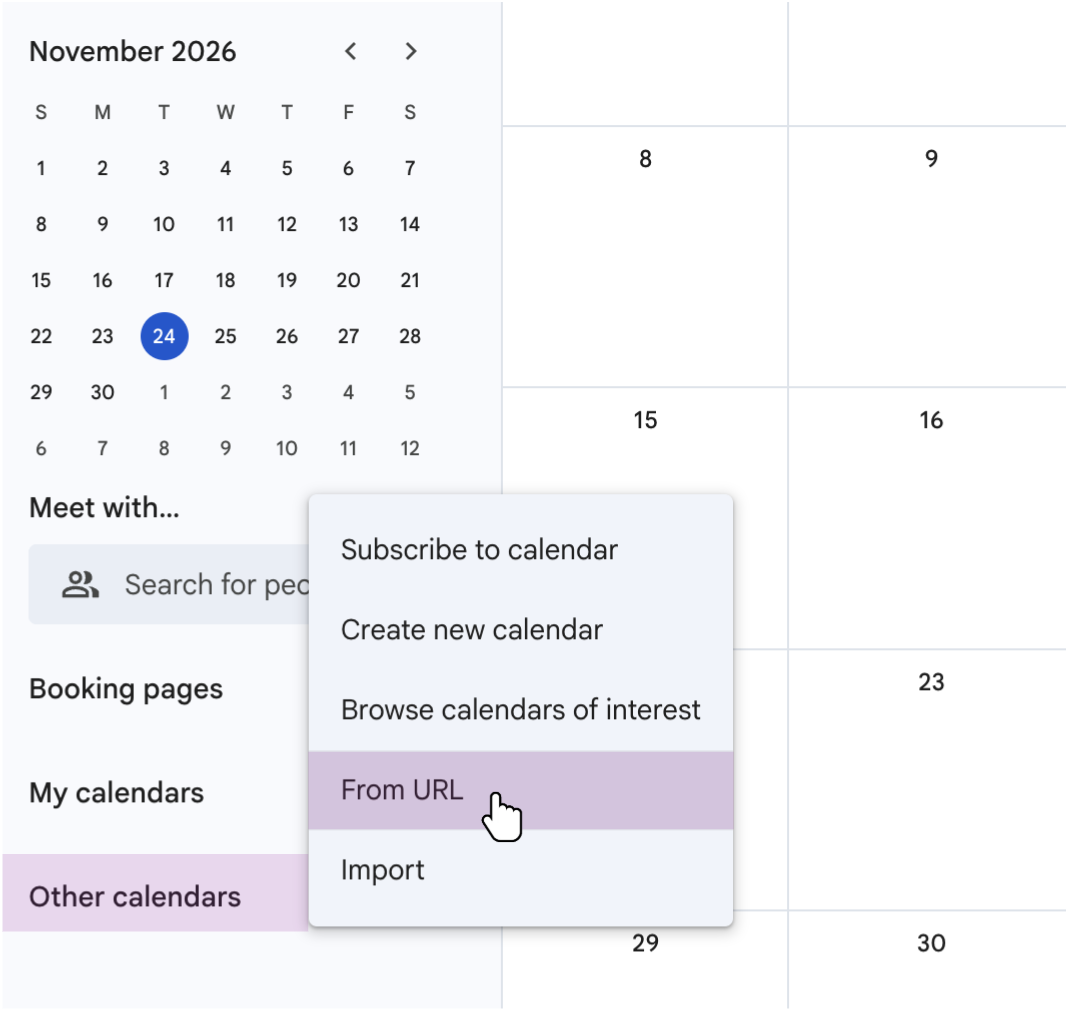
- In the left sidebar, click the + next to Other calendars, then select From URL.
- Paste the link into the URL of calendar field.
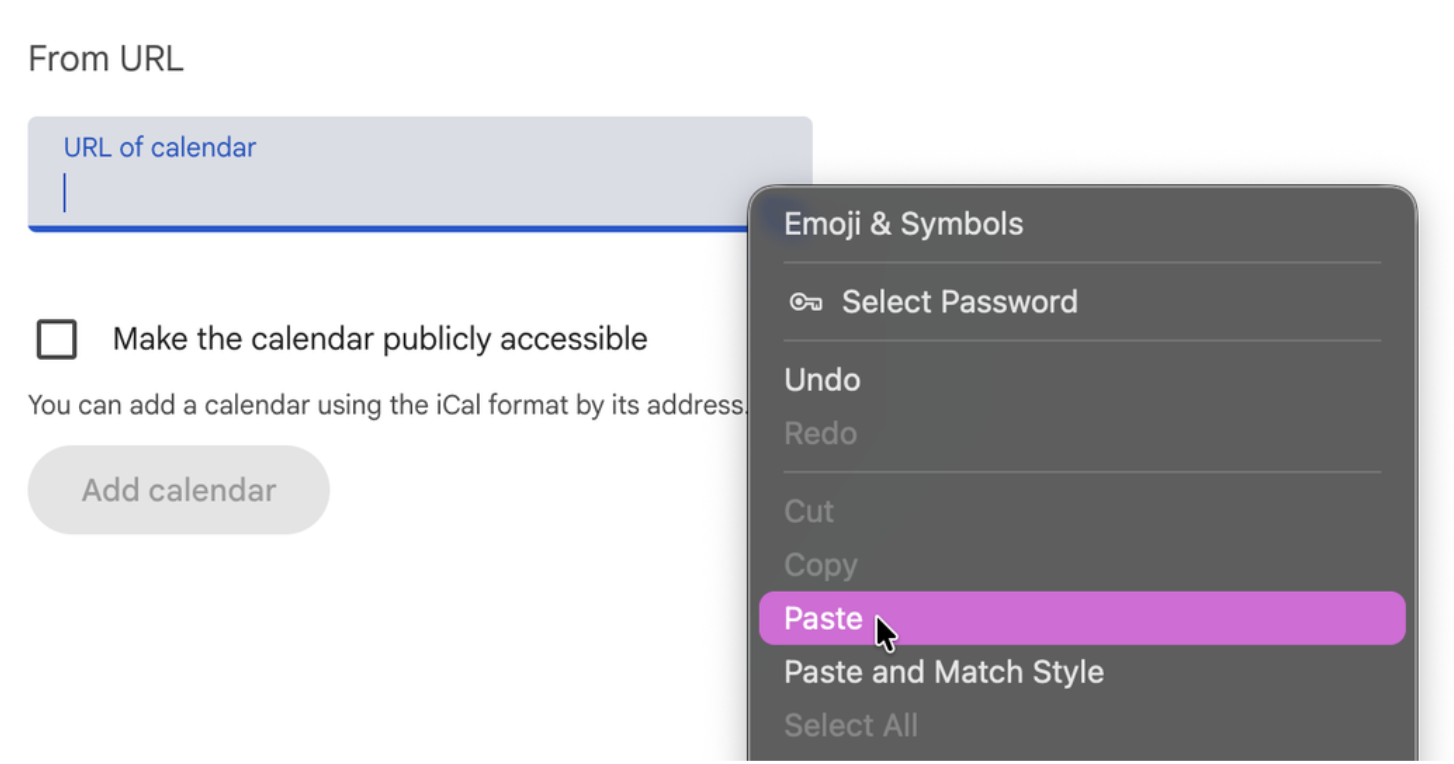
- Select Add calendar.
- The calendar now shows up under Other calendars. You can change its name and color in the calendar's settings.
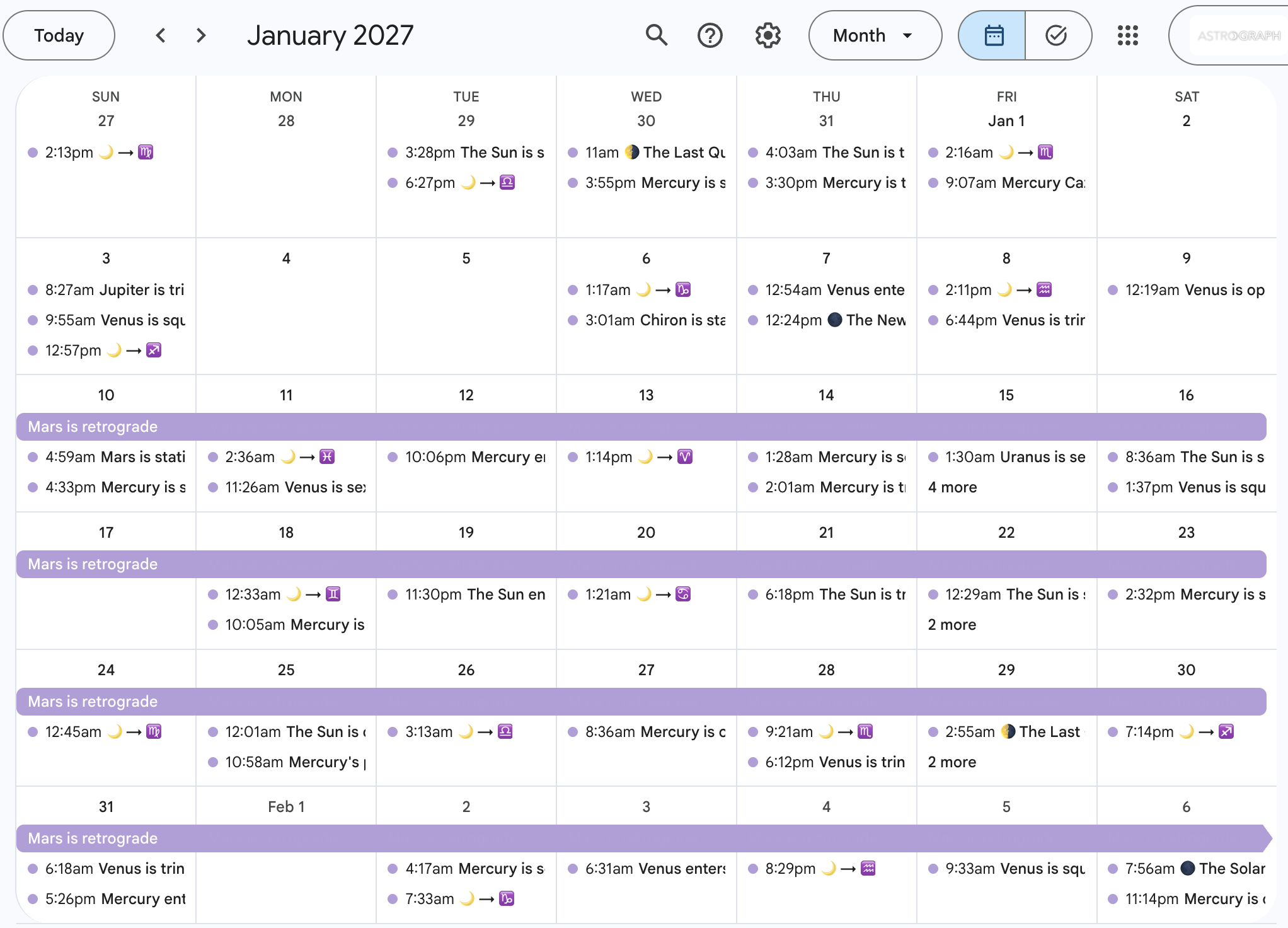
The calendar also shows up in the Google Calendar app on your phone. If you don't see it, open the app's settings, tap the calendar, and turn on Sync.
Outlook on the web (Outlook.com or Microsoft 365) and the new Outlook for Windows
- Open Calendar from the left-hand bar.
- Select Add calendar. If you don't see it, expand the navigation pane first.
- Select Subscribe from web.
- Paste the link and name the calendar, for example "TimePassages 2027 Astro Calendar."
- Select Import. Even though the button says Import, this sets up a subscription, so the calendar stays up to date.
Classic Outlook for Windows (you'll see a File tab at the top)
- Go to File > Account Settings > Account Settings.
- Open the Internet Calendars tab and select New.
- Paste the link and select Add.
- Name the calendar and select OK.
Outlook for Mac
Follow the Outlook on the web steps above. The calendar then shows up automatically in Outlook on your Mac and phone when they're signed in to the same account.
Apple Calendar (Mac, iPhone, iPad)
- Open your receipt or order confirmation on the device where you use Apple Calendar.
- Click TimePassages 2027 Astro Calendar (Apple Calendar).
- When your device asks, tap Subscribe, then Add.
Troubleshooting
- Events don't show up yet: Wait a few minutes and refresh. Google and Outlook can take up to 24 hours to pull in later updates to subscribed calendars.
- Calendar is added but empty: Make sure you're looking at a date in 2027.
- Outlook won't subscribe: Some Outlook setups block internet calendars. Contact our support team and we'll help.
- Can't find your receipt: Please reach out to our support team—we’re happy to assist!
Was this article helpful?
That’s Great!
Thank you for your feedback
Sorry! We couldn't be helpful
Thank you for your feedback
Feedback sent
We appreciate your effort and will try to fix the article